Using the Dashboard
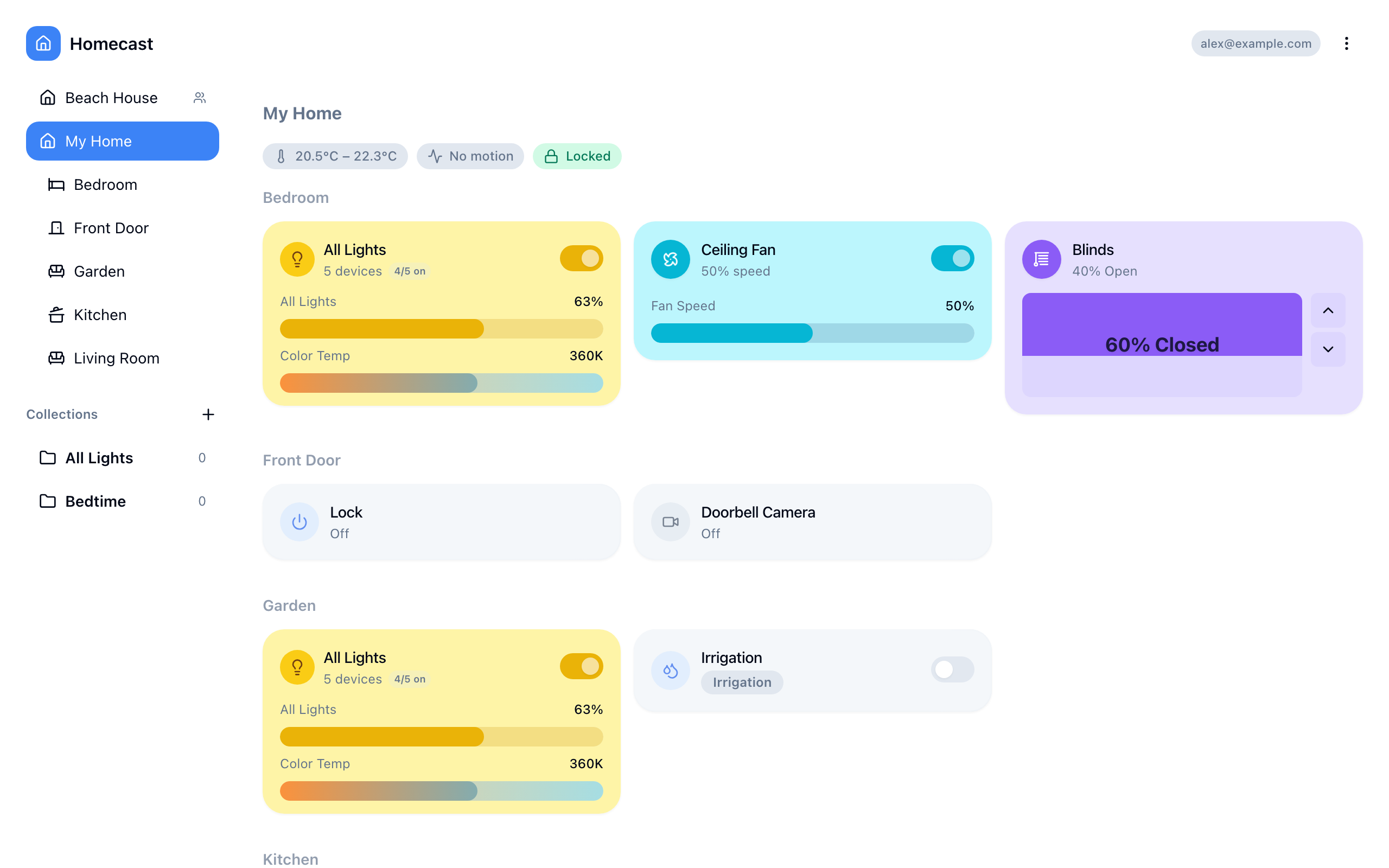
The dashboard at homecast.cloud is where you control your devices day-to-day. Everything updates in real time — no need to refresh.
Layout
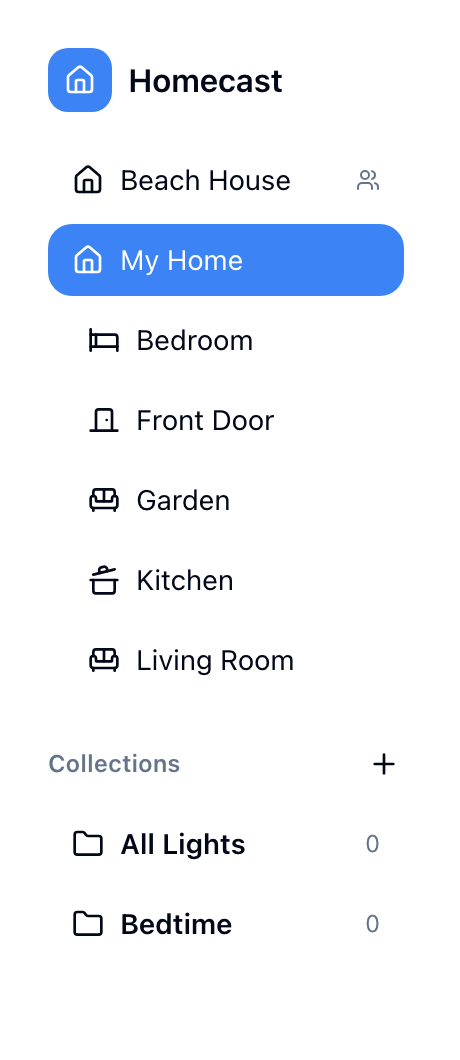
- Left sidebar — your homes (owned and shared), with rooms listed under each
- Main area — accessory widgets for the selected room or collection
- Top bar — search and settings
Switching homes
Click a home in the sidebar to expand it. If you have access to shared homes, they appear below your owned homes with a role badge (admin, control, or view).
See Sharing Access for how to invite people or accept invitations.
Browsing rooms
Rooms are listed under each home in the sidebar. Click a room to see its accessories in the main area.
Room groups let you organize rooms into named sections (e.g., "Upstairs", "Downstairs"). Drag rooms to reorder them within a group.
Controlling devices
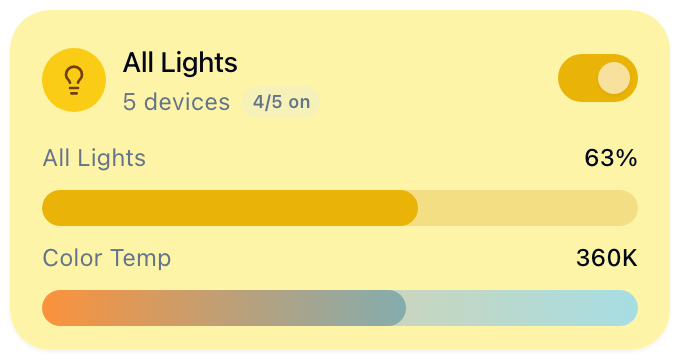
Each accessory appears as a widget matching its type. Here are some examples:
| Device type | Controls |
|---|---|
| Lights | On/off toggle, brightness slider, color (hue, saturation, color temperature) |
| Switches & Outlets | On/off toggle |
| Thermostats | Target temperature, HVAC mode (off / heat / cool / auto) |
| Locks | Lock / unlock button |
| Blinds & Shades | Position slider (0–100%) |
| Fans | On/off toggle, speed slider |
| Speakers | Volume slider, mute toggle |
| Sensors | Read-only display (temperature, humidity, motion, occupancy, CO₂, smoke, water leak) |
| Garage doors | Open / close button |
- State updates in real time as devices change
- Unreachable devices show a warning badge
- If you have view-only access to a shared home, controls are disabled
Collections
Collections are custom groups of accessories — even across different rooms or homes. They appear in the sidebar under "Collections."
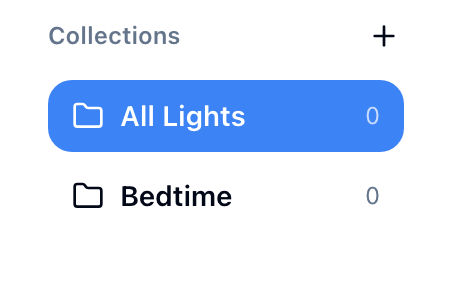
Use collections to create views like "All Lights," "Guest Controls," or "Bedtime."
See Collections for the full guide.
Automations
When viewing a home (not a specific room), an Automations section appears above your accessories. This shows all HomeKit automations for that home — time-based, sunrise/sunset, device-triggered, and more.
- Click an automation card to view its trigger, conditions, and actions
- Toggle the switch to enable or disable an automation
- Create new automations with the form dialog (time or event triggers, pick accessories and target values)
- Automations sync with the Apple Home app — changes in either place are reflected in both
Scenes
HomeKit scenes appear per-home in the sidebar. Click a scene to execute it — this triggers the scene on all included devices at once.
Service groups
Service groups (defined in the Apple Home app) let you control multiple accessories together. For example, "All Living Room Lights" — toggling it turns all the lights on or off simultaneously.
Customization
Backgrounds — Set a custom background image per home, room, or collection. Click the settings icon and choose "Background" to upload your own or pick from presets.
Visibility — Hide homes, rooms, or accessories you don't use. Right-click an item and select "Hide." Toggle "Show hidden items" in settings to reveal them again.
Layout — Drag to reorder rooms, accessories, and room groups in the sidebar.
Menu bar (Mac app)
When the Homecast Mac app is running, its menu bar icon gives you quick access to your devices without opening the full dashboard:
- Browse homes, rooms, and accessories
- Toggle devices directly from the menu bar
- See real-time state updates
Search
Start typing in the search bar to filter accessories by name across all your homes and rooms.
Next: Download the mobile app
Something not working? Common issues