Set Up Your Relay
Get from signup to controlling your first device in under 10 minutes.
Cloud Managed Alternative
Don't have a Mac? Cloud Managed lets you use Homecast with a hosted relay — no Mac required.
What you'll need
- A Mac running macOS 14 Sonoma or later
- HomeKit devices set up in the Apple Home app
Step 1: Create an account
- Go to homecast.cloud and click Sign Up
- Enter your email and password
- Check your email for a verification link and click it
Can't find the email?
Check your spam/junk folder. Gmail users: check the Promotions tab. See email verification troubleshooting if it doesn't arrive.
Step 2: Download the Mac app
- Download Homecast from the Mac App Store
- Open the app — it appears in your menu bar as a house icon
- macOS will ask for HomeKit permission — click Allow
HomeKit permission is required
Without HomeKit access, the app can't see your devices. If the prompt doesn't appear, go to System Settings → Privacy & Security → HomeKit and enable Homecast. See HomeKit permission troubleshooting.
Step 3: Sign in to the Mac app
- Click the Homecast icon in your menu bar
- Click Sign In — a browser window opens to homecast.cloud
- Sign in with your account
- The menu bar icon updates:
- Green dot = connected to the server
- Red / gray = not connected — see relay offline troubleshooting
Step 4: Verify it works
- Open homecast.cloud in any browser — this can be on a different device or network
- Sign in with your account
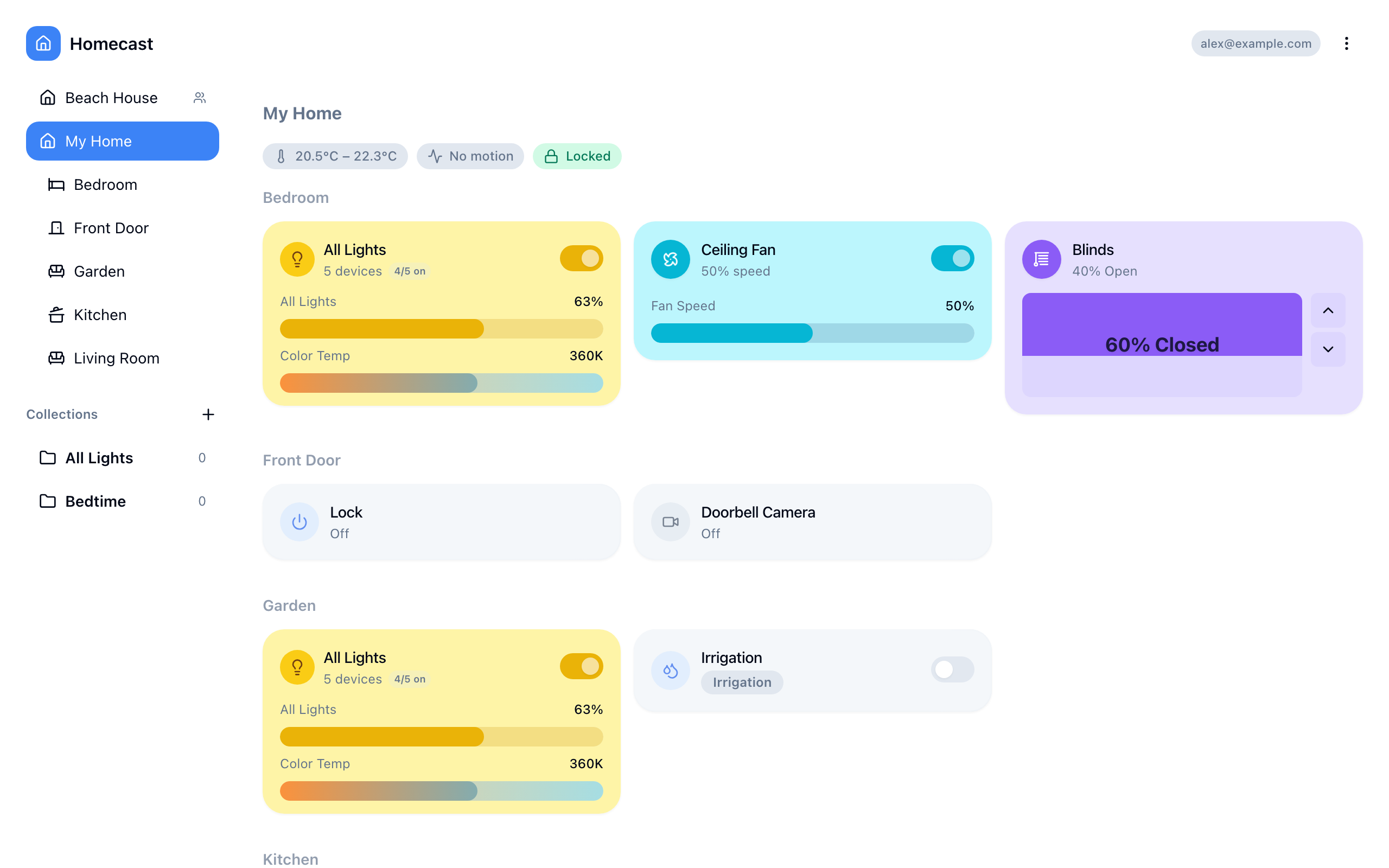
- Your homes and devices should appear within a few seconds
- Try toggling a light or checking a sensor value
Devices not appearing?
Make sure the Mac app is running and shows a green dot. See devices not appearing.
Step 5: Keep the relay running
The Mac must stay awake for remote access to work. To set it up for always-on operation:
- Prevent sleep: System Settings → Energy → Prevent automatic sleeping when the display is off
- Launch at login: System Settings → General → Login Items → add Homecast
- Best hardware: Mac mini, Mac Studio, or any Mac that stays on 24/7
The relay reconnects automatically after network drops, restarts, or brief sleep periods. After a longer offline period, it re-syncs all home and accessory data when it reconnects.
What's next
- Learn the dashboard — navigate rooms and control devices
- Download the mobile app — control your home from iOS or Android
- Invite family members — share access with other people
- Build automations with the API — write scripts to control devices
- Connect an AI assistant — let Claude or ChatGPT control your home