Collections
Collections let you group accessories from different rooms — even different homes — into custom views on your dashboard.
Why use collections
- Group "All Lights" across every room
- Create a "Guest Controls" set for visitors
- Build a "Bedtime" view with bedroom lights, thermostat, and locks
- Share a curated set of devices via link
Create a collection
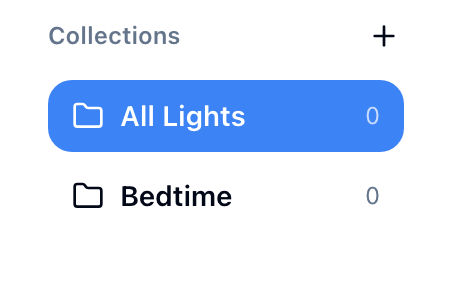
- In the dashboard sidebar, go to Collections and click the + button
- Name the collection (e.g., "Living Room Lights")
- An accessory picker appears — select accessories from any home or room
Free plan
The free plan supports up to 10 accessories total. The Standard plan removes that limit.
Organize within a collection
Groups — Subdivide a collection into named sections (e.g., "Upstairs," "Downstairs"). Click "Add Group" within the collection, then drag accessories between groups.
Reorder — Drag accessories and groups to change their display order.
Background — Set a custom background image per collection, the same way you can for rooms.
Edit a collection
- Rename: Click the collection name in the sidebar to edit it
- Add or remove accessories: Open the collection, enter edit mode, and use the picker
- Delete: Right-click the collection in the sidebar and select Delete
Share a collection
Collections can be shared via link, just like rooms or individual accessories:
- Open the collection
- Click the Share button
- Choose an access type: public, passcode-protected, or user-specific
- Set the role: view (read-only) or control (interactive)
See Sharing Access for details on all sharing options.
For developers
Collections are also available through the GraphQL API and can be used for webhook event filtering. See the GraphQL reference and Webhooks reference.
Next: Sharing Access