Sharing Access
Homecast supports two ways to share: home members (invite someone to your entire home) and share links (share specific devices, rooms, or collections via URL).
Invite a home member
How to invite
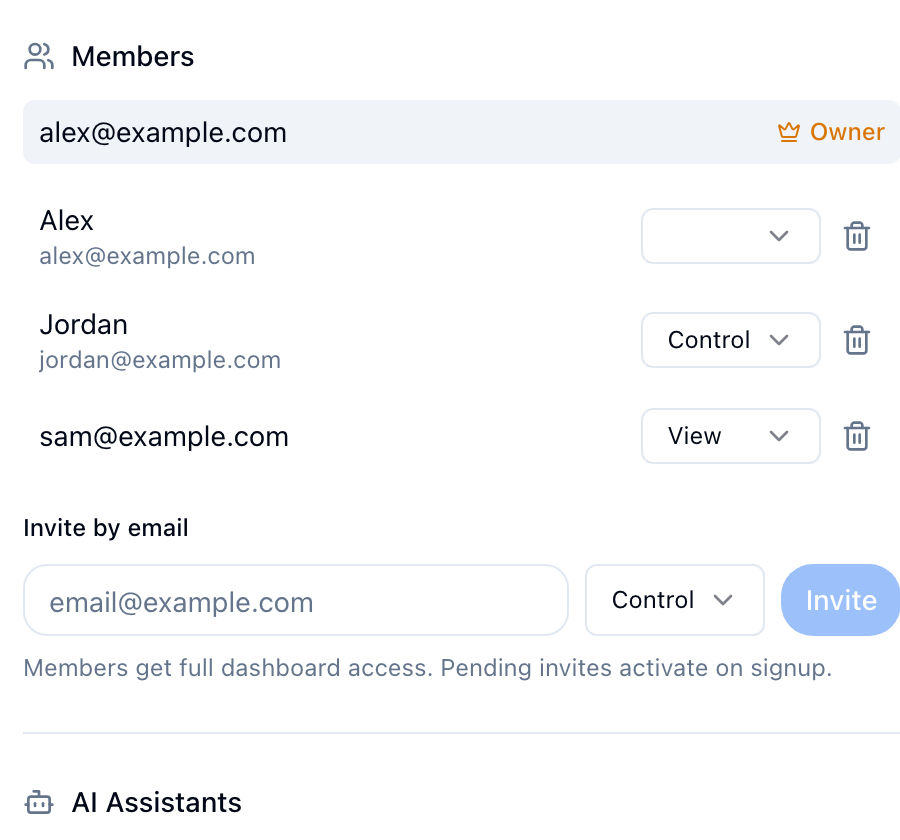
- Open the dashboard and click the Members icon on a home in the sidebar
- Enter their email address
- Choose a role:
| Role | See devices | Control devices | Manage members | Manage sharing |
|---|---|---|---|---|
| Admin | Yes | Yes | Yes | Yes |
| Control | Yes | Yes | No | No |
| View | Yes | No | No | No |
- Click Invite — they receive an email notification
What the invited person sees
- If they already have a Homecast account, the invitation appears under Pending Invitations in their dashboard
- If they don't have an account yet, the invitation waits — when they sign up with that email, it automatically links
- They can accept or reject the invitation
Change a member's role
Open the Members dialog, click the role dropdown next to their name, and select a new role.
Remove a member
Open the Members dialog and click Remove next to their name. Their access is revoked immediately.
Relay access in Apple Home
Separate from Homecast's own roles above, the relay's Apple ID has its own permission level inside Apple Home:
| Level | What works | HomeKit automations |
|---|---|---|
| View-only (default for invited members) | Device control, scenes, monitoring, APIs, AI assistants, Homecast automations | Read-only — view and inspect, but not create or change |
| Add & Edit Accessories ("Allow Editing" on older iOS) | Everything above | Full — Homecast and AI assistants can create, edit, enable/disable, and delete |
Both levels are fully supported — choose based on how much you want Homecast to manage. The current level is shown under Settings → your home → Apple Home access, and can be changed anytime in the Apple Home app: Home Settings → tap the relay user → toggle "Add & Edit Accessories".
Share a device, room, or collection via link
Create a share link
Permissions
Only home owners and admins can create and manage share links. Members with control or view roles cannot share.
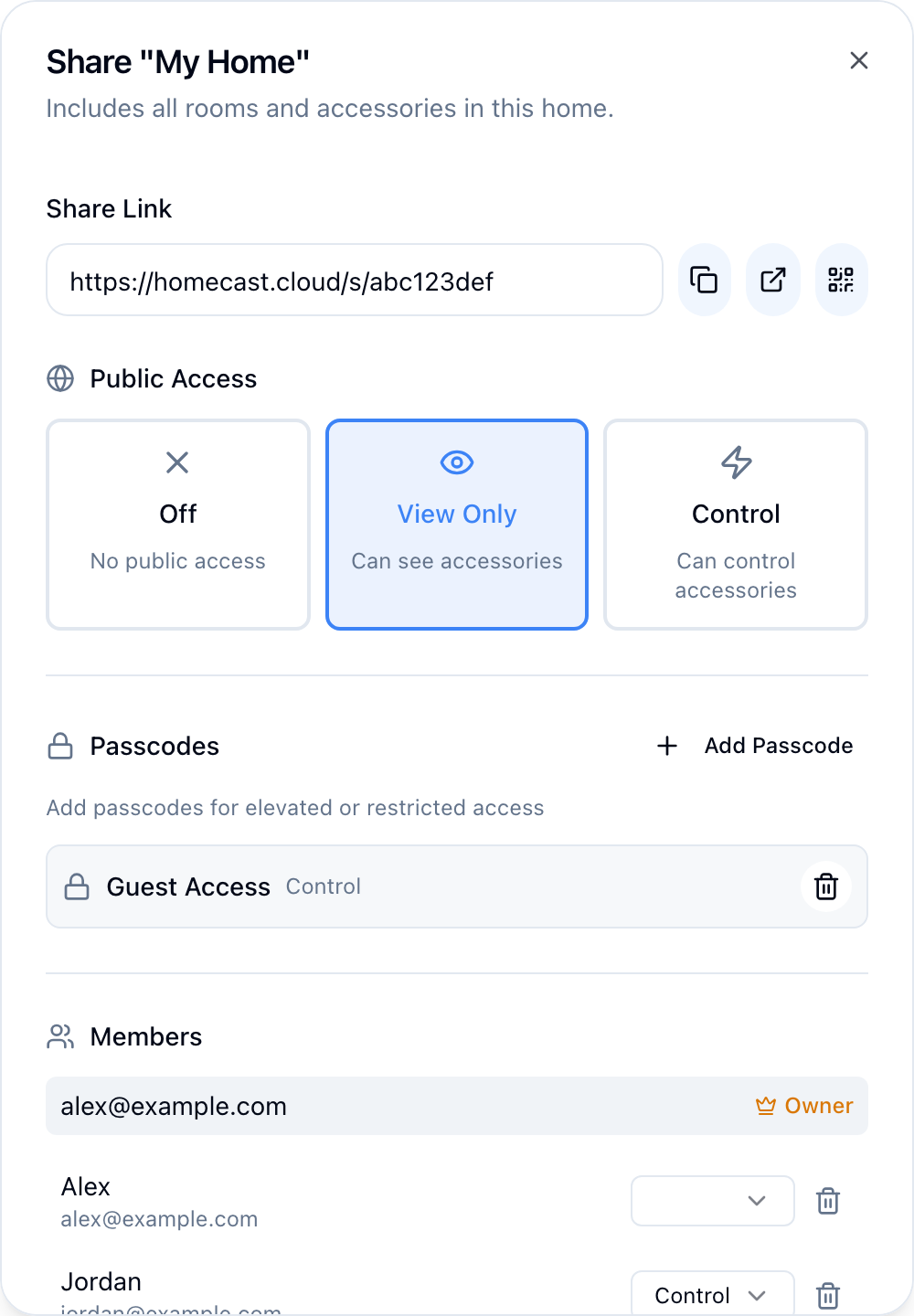
- Right-click any home, room, or collection in the sidebar → Share
- Choose an access type:
| Type | Description |
|---|---|
| Public | Anyone with the link can access |
| Passcode | Link requires a passcode to open |
| User | Only a specific email address can access |
- Choose a role: view (read-only) or control (can toggle and adjust devices)
- Copy the generated link
What the recipient sees
A standalone page showing only the shared devices. They can view state — and control devices if the role allows — without needing a Homecast account (for public and passcode links).
Share links also work as API endpoints. GET https://api.homecast.cloud/s/{hash} returns the current state as JSON — useful for scripts and dashboards. See Share Links reference.
Passcode-protected links prompt for the code before showing content.
Revoke a share link
Go back to the Share dialog for the entity and delete the access entry. The link stops working immediately.
For developers
Access tokens and OAuth clients can also be scoped to specific homes with view or control permissions. See Authentication and the Share Links API reference.
Something not working? Sharing issues