
Connect an AI Assistant
Homecast exposes Model Context Protocol (MCP) tools so AI assistants can read and control your smart home through natural language.
How it works
When you connect an AI assistant to Homecast, it gets these tools:
get_state— Read the current state of your devicesset_state— Control devices (turn on/off, set brightness, etc.)run_scene/create_scene/update_scene/delete_scene— Execute and manage HomeKit scenesget_automations— List your HomeKit automationscreate_automation/update_automation/delete_automation— Build and manage HomeKit automationsget_hc_automations/create_hc_automation/update_hc_automation/delete_hc_automation— Build and manage Homecast automations, which can do things HomeKit cannotcreate_virtual_accessory/update_virtual_accessory/delete_virtual_accessory— Create and edit values your home remembers, for automations that need memory
The assistant calls these tools behind the scenes when you ask things like "turn off the living room lights" or "turn the porch light on at sunset every day".
Setup for Claude Desktop / Claude Code
Add this to your MCP client configuration:
{
  "mcpServers": {
    "homecast": {
      "type": "url",
      "url": "https://api.homecast.cloud/mcp"
    }
  }
}
On first use, the OAuth flow will open in your browser:
- Sign in to your Homecast account
- Choose which homes to grant access to
- Select the permission level (
viewfor read-only,controlfor read and write) - Approve the connection
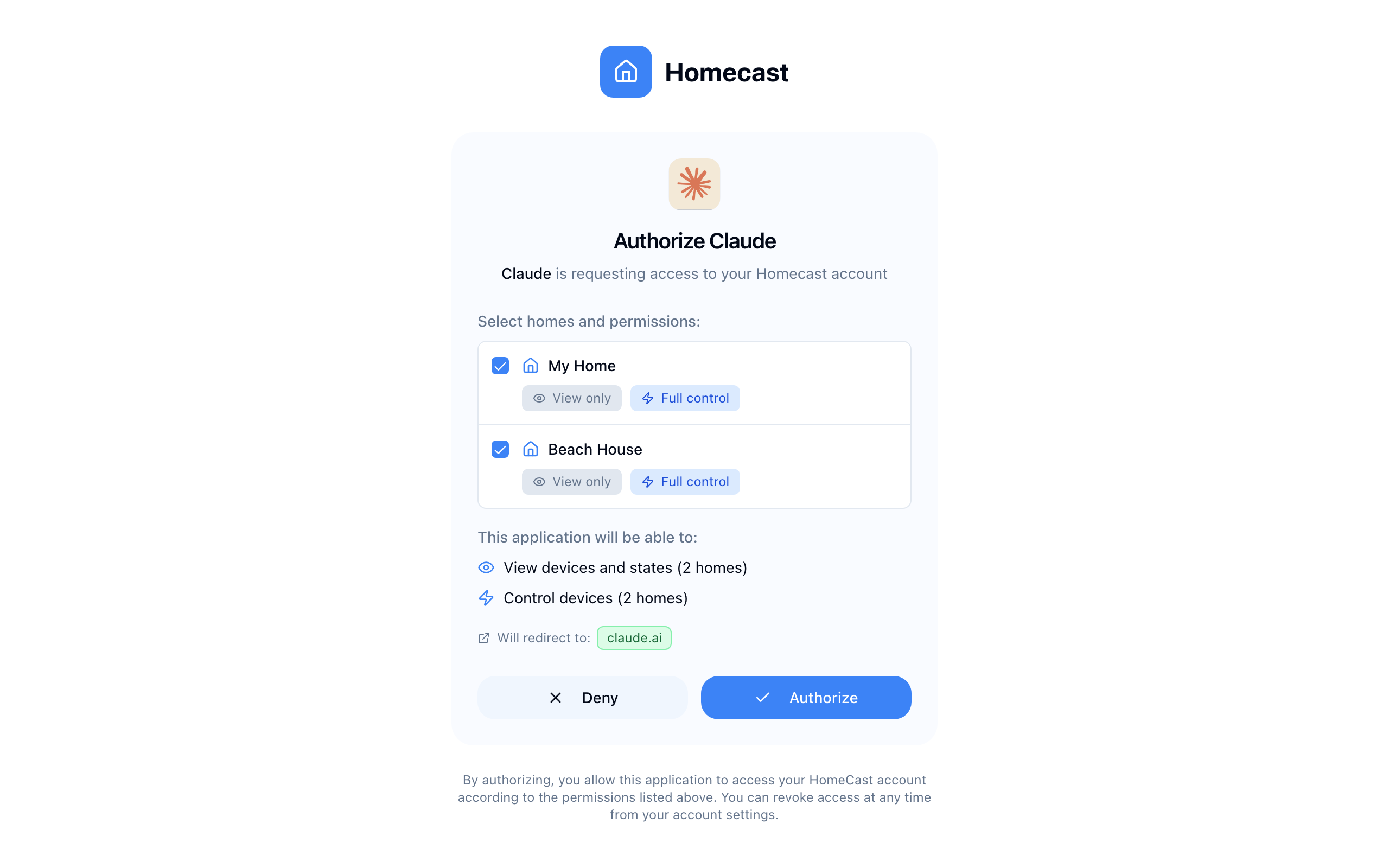
The assistant stores its OAuth token and reconnects automatically.
Setup with an access token
You can also find the MCP endpoint in the Share dialog for any home — under AI Assistants.
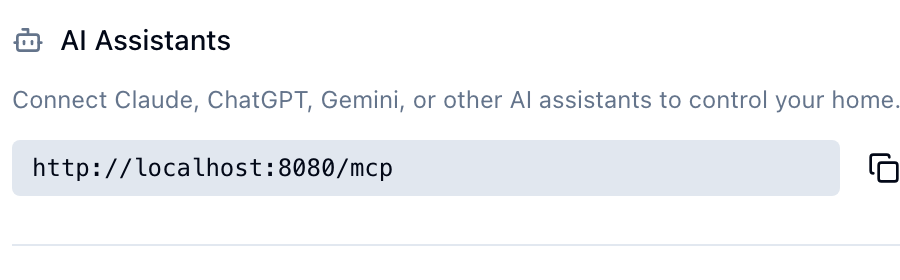
If your MCP client doesn't support OAuth, create an access token instead:
- Enable Developer Mode in Settings → Account at homecast.cloud
- Go to Settings → API Access → Manage
- Create a token with the desired home permissions
- Configure your MCP client with the token as a Bearer header:
{
  "mcpServers": {
    "homecast": {
      "type": "url",
      "url": "https://api.homecast.cloud/mcp",
      "headers": {
        "Authorization": "Bearer hc_your_token_here"
      }
    }
  }
}
Available tools
get_state
Read the current state of your devices. Returns a hierarchical view of homes, rooms, and accessories with their current values.
| Parameter | Type | Required | Description |
|---|---|---|---|
filter_by_home | string | No | Only show devices in this home |
filter_by_room | string | No | Only show devices in this room |
filter_by_type | string | No | Only show this device type (e.g., lightbulb, thermostat) |
filter_by_name | string | No | Only show devices matching this name |
set_state
Control one or more devices. Each update specifies a device by home, room, and accessory name, plus the properties to change.
| Parameter | Type | Required | Description |
|---|---|---|---|
updates | array | Yes | List of device updates |
updates[].home | string | Yes | Home name |
updates[].room | string | Yes | Room name |
updates[].accessory | string | Yes | Accessory name |
updates[].on | boolean | No | Power state |
updates[].brightness | integer | No | Brightness 0–100 |
updates[].hue | integer | No | Color hue 0–360 |
updates[].saturation | integer | No | Color saturation 0–100 |
updates[].color_temp | integer | No | Color temperature (mireds) |
updates[].hvac_mode | string | No | HVAC mode: off, heat, cool, auto |
updates[].heat_target | float | No | Heating target temperature |
updates[].cool_target | float | No | Cooling target temperature |
updates[].lock_target | integer | No | 1 = lock, 0 = unlock |
updates[].speed | integer | No | Fan speed 0–100 |
updates[].target | integer | No | Position 0–100 (blinds, garage) |
run_scene
Execute a HomeKit scene by name.
| Parameter | Type | Required | Description |
|---|---|---|---|
home | string | Yes | Home name |
name | string | Yes | Scene name |
Automation tools
Homecast can build automations in two places, and an assistant picks between them:
| HomeKit automations | Homecast automations | |
|---|---|---|
| Where they run | Your Apple home hub | The Homecast relay Mac |
| Keep working with the Mac off | Yes | No |
| Show up in the Apple Home app | Yes | No — they live in Homecast |
| "When humidity goes above 65%" | Not possible — exact matches only | Yes |
| Remember something between runs | No | Yes, using virtual accessories |
| Delays, notifications, running scenes | No — device properties only | Yes |
Assistants default to Homecast automations, because they can express far more, and switch to HomeKit when the automation needs to survive the Mac being off or the user wants it visible in Apple Home.
If you have ever been told a request was impossible — a threshold, or "don't do it again if it's already running" — that was HomeKit's limit, not Homecast's. Those work now.
HomeKit automations
The same ones you see in the Apple Home app:
get_automations— Lists automations per home, including whether each is enabled and editablecreate_automation— Creates an automation from a trigger (time of day, sunrise/sunset, a device changing state, or a repeating interval), optional conditions, and device actionsupdate_automation— Renames, enables/disables, or modifies an automationdelete_automation— Permanently removes an automation
A few HomeKit rules apply: presence and location ("when I arrive home") triggers can only be created in the Apple Home app — assistants can see, enable/disable, and delete them, but not create or edit them. Conditions are exact-match only, and automation actions set device properties rather than running scenes.
Creating and editing automations also requires the relay's Apple ID to have edit access in Apple Home ("Add & Edit Accessories", called "Allow Editing" on older iOS). Granting it is optional — with view-only access, automations are simply read-only and the assistant is told so upfront (view-only homes are annotated in the tool descriptions and in get_automations results); if it tries anyway, the error explains how to enable editing. See Troubleshooting.
See the MCP reference for the full trigger format.
Homecast automations
The visual-editor automations — the assistant builds them the same way you would, and you can open and edit any of them afterwards:
get_hc_automations— Lists Homecast automations per home, with their triggers, conditions and actionscreate_hc_automation— Creates one from triggers (including numeric thresholds), optional AND/OR/NOT conditions, and actions that can set devices, run scenes, wait, notify, or change a virtual accessoryupdate_hc_automation— Renames, enables/disables, or modifies onedelete_hc_automation— Permanently removes one
None of this needs edit access in Apple Home — these automations are Homecast's, not HomeKit's. They do need the relay Mac to be awake and running Homecast, since that is where they execute.
For automations that need to remember something — whether a cycle is already running, what mode the house is in, a value to restore later — the assistant creates a virtual accessory with create_virtual_accessory and reads it in a condition. update_virtual_accessory renames one or changes its settings later — adding a choice to a mode, widening a number's range — without disturbing the value it is currently holding. Ask for "run the dehumidifier when it gets damp, but not if I've turned the aircon on myself" and that is what it will build. There is a worked example in the MCP reference.
Assistants cannot yet build automations that use code nodes, HTTP requests or branching — those are visual-editor features. An automation using them is listed as editable_via_mcp: false, and the assistant will offer to rename, pause or delete it rather than silently rewriting it and dropping the parts it cannot express.
What you can ask
Once connected, you can use natural language:
- "Turn off the living room lights"
- "Set the bedroom to 72 degrees"
- "What's the temperature in the kitchen?"
- "Lock the front door"
- "Dim the office lights to 30%"
- "Run the Good Night scene"
- "Are any lights on right now?"
- "Set all lights to warm white"
- "Close the garage door"
- "What devices are in the bedroom?"
- "Turn the porch light on at sunset and off at 11pm"
- "When the hallway motion sensor triggers, turn on the landing light"
- "What automations do I have? Disable the 4am one"
The AI reads your device state, figures out the right API calls, and executes them.
Security
- Separate tokens per assistant — Create a dedicated token for each AI integration so you can revoke individually
- Review authorized apps — Check Settings → Shared Items → Authorized Apps to see which OAuth clients have access
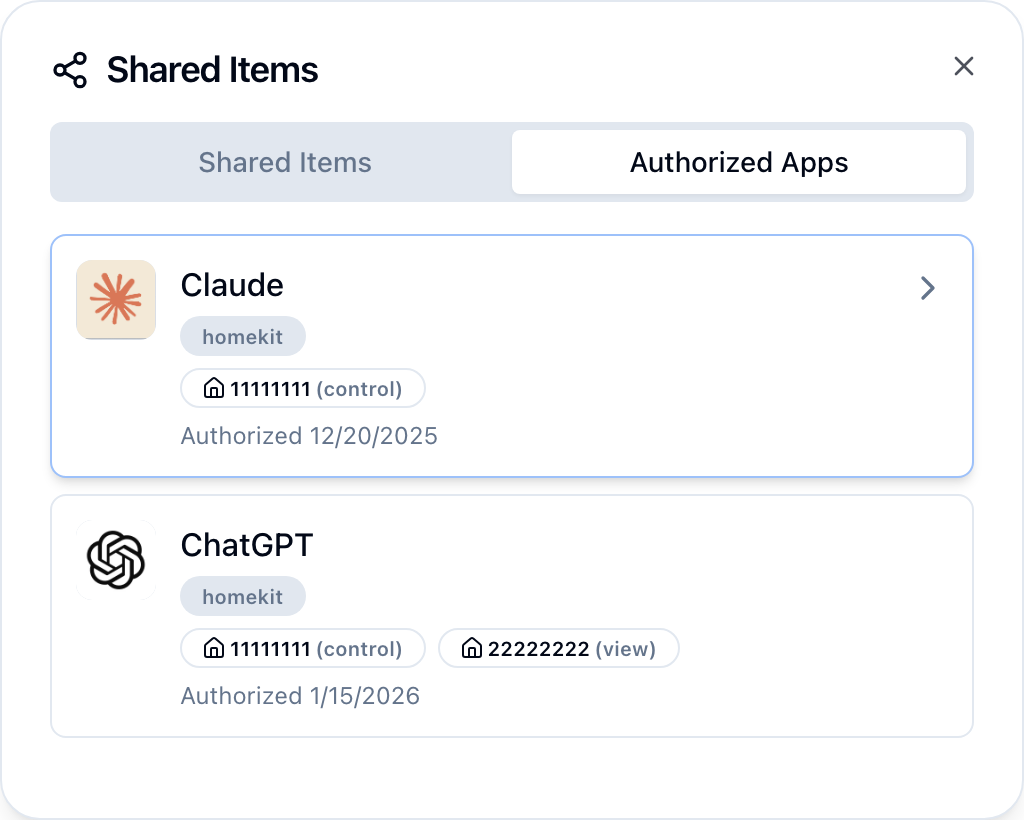
- Home-scoped permissions — Limit each assistant to specific homes and
vieworcontrolaccess - Revoke access — Remove an authorized app or delete a token at any time from Settings
See the MCP reference for protocol details and the Authentication reference for all auth models.