Self-Hosted Setup
Run the Homecast relay on your own Mac. The Mac app uses Apple's HomeKit framework to talk to your devices and connects to your homecast.cloud account so you can control them from anywhere.
Prefer not to dedicate a Mac?
Cloud Managed Setup gives you the same features without running anything yourself.
What you'll need
- A Mac running macOS 14 Sonoma or later that can stay on 24/7
- HomeKit devices set up in the Apple Home app on that Mac's iCloud account
- A Homecast account
Step 1: Create an account
- Go to homecast.cloud and click Sign Up
- Enter your email and password
- Check your email for a verification link and click it
Can't find the email?
Check your spam/junk folder. Gmail users: check the Promotions tab. See email verification troubleshooting if it doesn't arrive.
Step 2: Install the Mac app
- Download Homecast from the Mac App Store
- Open the app — it appears in your menu bar as a house icon
- macOS will ask for HomeKit permission — click Allow
HomeKit permission is required
Without HomeKit access, the app can't see your devices. If the prompt doesn't appear, go to System Settings → Privacy & Security → HomeKit and enable Homecast. See HomeKit permission troubleshooting.
Step 3: Sign in and connect
- Click the Homecast icon in your menu bar
- Click Sign In — a browser window opens to homecast.cloud
- Sign in with your account
- The menu bar icon updates:
- Green dot = connected to the server
- Red / gray = not connected — see relay offline troubleshooting
Step 4: Verify it works
- Open homecast.cloud in any browser — this can be on a different device or network
- Sign in with your account
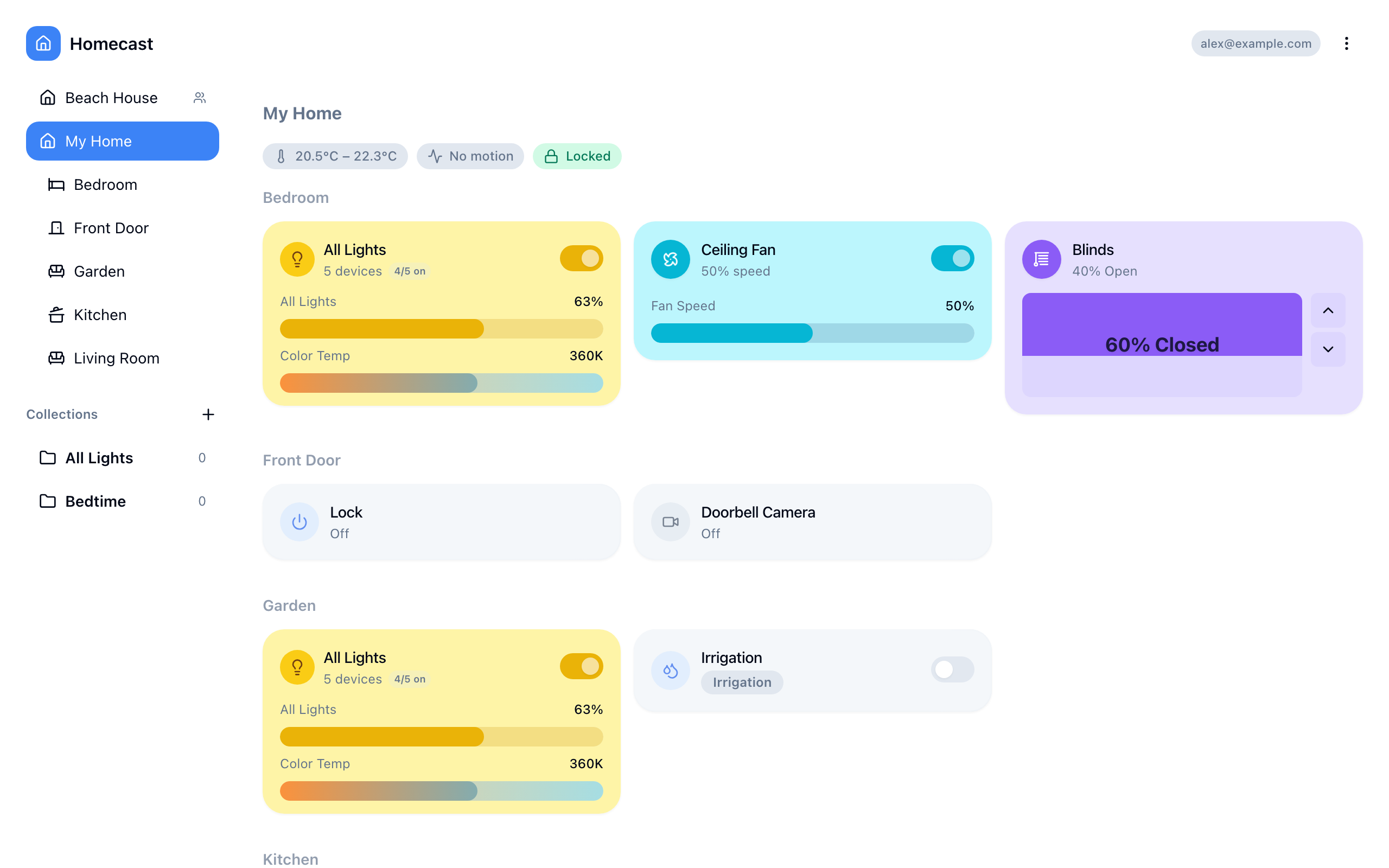
- Your homes and devices should appear within a few seconds
- Try toggling a light or checking a sensor value
Devices not appearing?
Make sure the Mac app is running and shows a green dot. See devices not appearing.
Keep the relay running
The Mac must stay awake for remote access to work. To set it up for always-on operation:
- Prevent sleep: System Settings → Energy → Prevent automatic sleeping when the display is off
- Launch at login: System Settings → General → Login Items → add Homecast
- Best hardware: Mac mini, Mac Studio, or any Mac that stays on 24/7
The relay reconnects automatically after network drops, restarts, or brief sleep periods. After a longer offline period, it re-syncs all home and accessory data when it reconnects.
FAQ
What if my Mac goes offline?
Your devices remain controllable via the Apple Home app, but Homecast stops working until the Mac reconnects. See Relay Offline.
Can I switch to Cloud Managed?
Yes. Sign up for Cloud Managed — your Homecast account and settings are preserved. The cloud relay takes over once the Apple Home invite is accepted.
Is there a device limit?
The free plan covers up to 10 accessories. Service groups count as a single accessory regardless of how many devices they contain. See Account & Settings.
Can I see my cameras?
Not from a self-hosted relay: camera and doorbell tiles show status only. Camera stills and live view are a Cloud Relay feature — the images are captured by a relay Homecast operates, and your own Mac never captures them.
What's next
- Using the Dashboard — navigate rooms and control devices
- Mobile App — control your home from iOS or Android
- Sharing Access — share with other people