
Smart Deals
Smart Deals surfaces price drops and deals on products compatible with your smart home — right on your dashboard widgets.
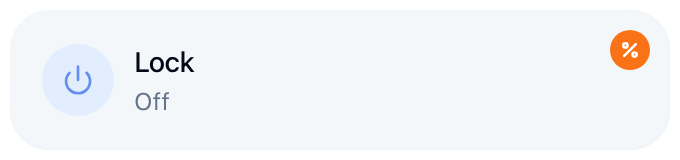
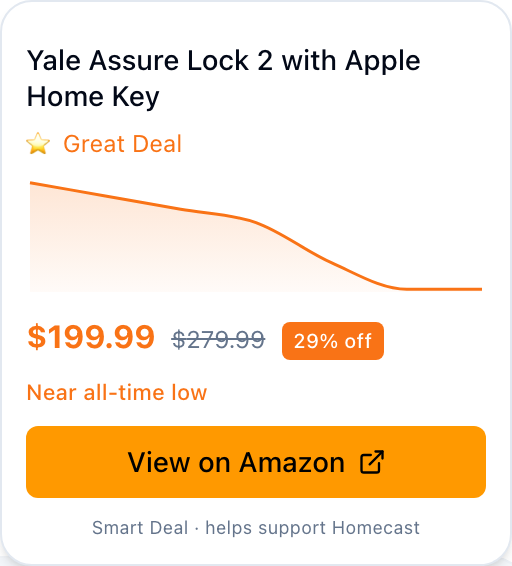
Click the badge to see product details, price history, and a link to the retailer:
How it works
- Homecast identifies the manufacturer and model of each accessory connected to your home
- Those are matched against current Amazon product listings, and prices are tracked over time
- When a deal is detected (price drop, lightning deal, or significant discount), a badge appears on the relevant widget
- Click the badge to see the product, price history, and a link to the retailer
Deal tiers
The tier describes how big the discount is, and nothing else.
| Tier | Badge | Meaning |
|---|---|---|
| Amazing | Fire | 40%+ off the typical price |
| Great | Star | 20%+ off the typical price |
| Good | Tag | A smaller but still notable discount |
Being at the cheapest price we've tracked is a separate thing, shown on its own line as "Lowest price we've tracked" — it doesn't inflate the tier. (It used to, which is how a 10%-off listing could end up with a flashing "Amazing Deal" badge.)
Badges are deliberately rare: a deal has to clear a minimum discount to earn one, so most tracked products won't show a badge even when their price has moved. Price information for everything we track is always available from the widget's menu under Price & Deals.
Where the "typical price" comes from
Where Amazon advertises its own was-price, that's what you see struck through. Otherwise the comparison is against the average price we've recorded for that listing over the last 30 days, shown as "usually £X".
We only make a discount claim once we've watched a listing long enough for that average to mean something. A product we've only just started tracking will show its price history but no percentage.
Controlling Smart Deals
Open Settings (menu → Homecast Settings) to configure:
- Minimum tier filter — choose "All Deals", "Great & Above", or "Amazing Only" to control which deals appear (available to all users)
- Toggle on/off — fully disable Smart Deals to hide all deal badges (Standard plan only)
Free vs. paid accounts
| Free | Standard | |
|---|---|---|
| Smart Deals shown | Yes (always on) | Yes (on by default) |
| Can filter by tier | Yes | Yes |
| Can disable entirely | No — upgrade to Standard | Yes |
Smart Deals help support Homecast by earning a small commission when you purchase through a deal link. This has no effect on the price you pay. Free plan users always see deals (filtered by their chosen tier), which helps keep the free plan free.
Privacy
Smart Deals uses only the manufacturer name and model number of your accessories for matching — no personal data, usage patterns, or location information. See our Privacy Policy for details.
TIP
Smart Deals appear in the web dashboard, desktop app, and the Mac relay app.