
Using the Dashboard
The dashboard at homecast.cloud is where you control your devices day-to-day. Everything updates in real time — no need to refresh.
Layout
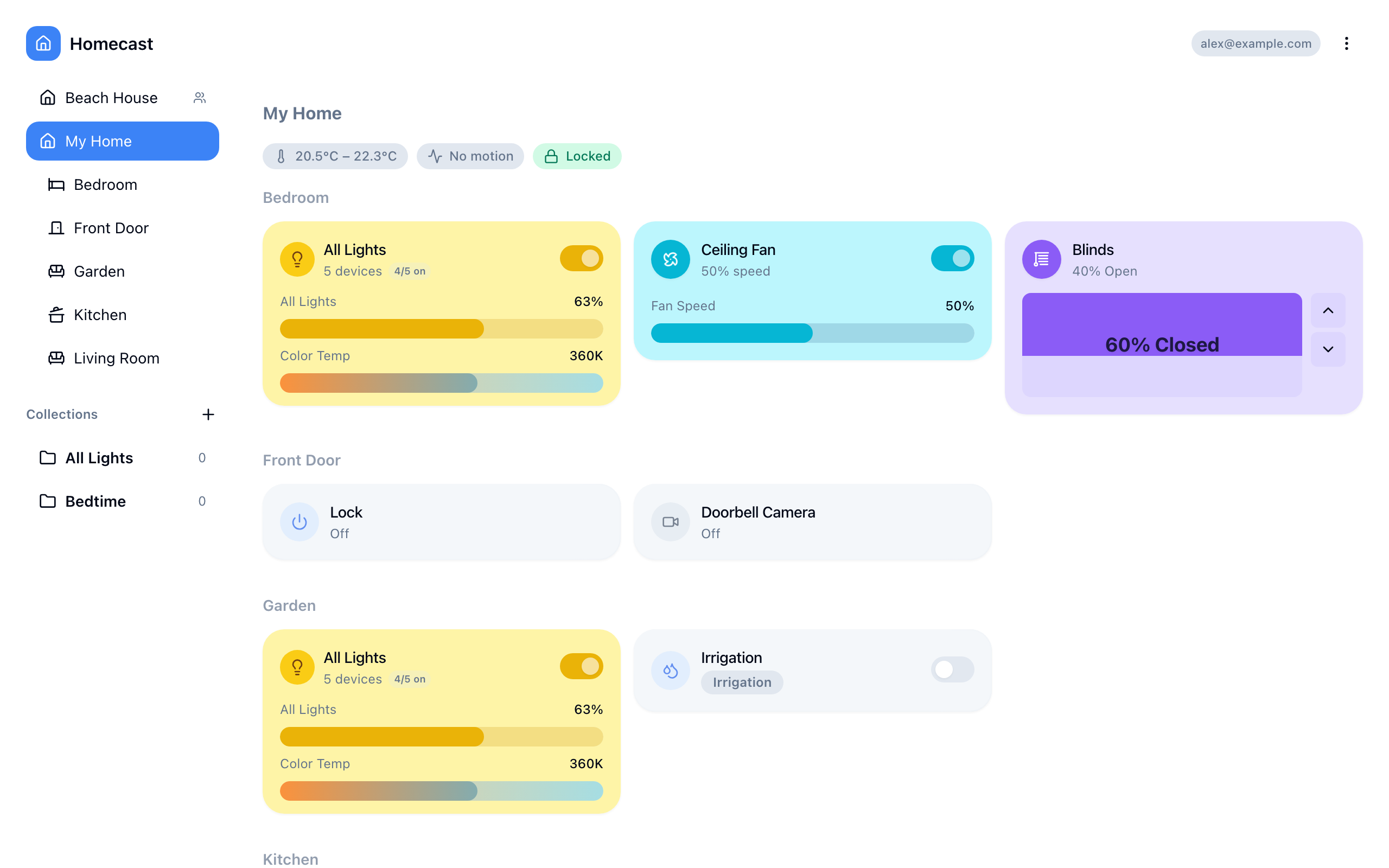
- Left sidebar — your homes (owned and shared), with rooms listed under each
- Main area — accessory widgets for the selected room or collection
- Top bar — search and settings
Switching homes
Click a home in the sidebar to expand it. If you have access to shared homes, they appear below your owned homes with a role badge (admin, control, or view).
See Sharing Access for how to invite people or accept invitations.
Browsing rooms
Rooms are listed under each home in the sidebar. Click a room to see its accessories in the main area.
Room groups let you organize rooms into named sections (e.g., "Upstairs", "Downstairs"). Drag rooms to reorder them within a group.
Controlling devices
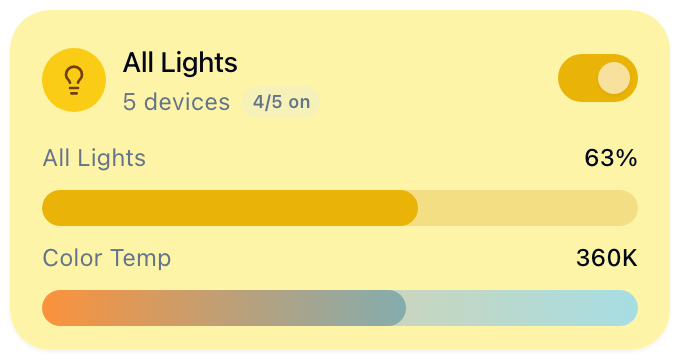
Each accessory appears as a widget matching its type. Here are some examples:
| Device type | Controls |
|---|---|
| Lights | On/off toggle, brightness slider, color (hue, saturation, color temperature) |
| Switches & Outlets | On/off toggle |
| Thermostats | Target temperature, HVAC mode (off / heat / cool / auto) |
| Locks | Lock / unlock button |
| Blinds & Shades | Position slider (0–100%) |
| Fans | On/off toggle, speed slider |
| Speakers | Volume slider, mute toggle |
| Sensors | Read-only display (temperature, humidity, motion, occupancy, CO₂, smoke, water leak) |
| Garage doors | Open / close button |
| Cameras & doorbells | Full-bleed previews; open for live view on a supported Mac cloud relay, or refreshed stills — see Cameras |
- State updates in real time as devices change
- Unreachable devices show a warning badge
- If you have view-only access to a shared home, controls are disabled
Cameras
View HomeKit camera snapshots from any signed-in Homecast client, including iOS and a browser. Images come from your Cloud Relay — cameras are a Cloud Relay feature, and a self-hosted relay on your own Mac does not offer them: its Settings → Homes → home page has no Cameras section. A Cloud Relay home needs:
- Camera capture available on the Cloud Relay. Settings → Homes → home → Cameras shows capture readiness. Homecast captures only its own camera window; macOS Screen Recording permission is not required for that. Capture availability does not mean permission to record the rest of the screen.
- Cameras switched on for the home, in Settings → Homes → home → Cameras. It is off by default: the images leave the house over the relay's connection, and that is the owner's decision.
With both in place, camera and video-doorbell tiles show a full-bleed snapshot behind their name and status. Small tiles crop the picture to fill their shape; opening a tile shows the complete image at its original proportions, including tall doorbell images. The timestamp stays with the last image if a refresh fails, and these previews are not labelled as live video.
Each signed-in browser or app keeps the last successful image per camera on that device, including its original timestamp and proportions. It survives a page reload and remains visible during a failed refresh or relay outage. A new device still needs its first successful image; this is not a shared cloud image archive, and no image history is kept. Signing out clears the device's saved images. When the client learns that camera images were disabled or access was refused, it removes the affected images as well. Storage is best-effort: clearing website data or browser storage eviction can remove the cache.
Relay builds that support persistent snapshots also keep one last image per camera on the relay Mac, in private storage excluded from backups. That lets a different viewing device receive the last image if a new capture fails, even after the relay has restarted. It is labelled as a last image with the refresh error and original timestamp. Signing out of the relay clears its saved images; the cloud still checks camera access and the home's camera toggle on every request. The relay must be connected to supply its copy—when it is offline, only images already saved on the viewing device are available.
Visible tile previews refresh about once a minute and can reuse a recent image. Offscreen tiles and hidden browser tabs do not keep requesting pictures. Opening the viewer starts live view on a supported relay; otherwise it requests a fresh image about every 10 seconds while visible. Still requests from the same page are staggered by home, with opened viewers ahead of queued tile previews.
Live view is approximately four frames per second and has no audio or talkback. Several people watching the same camera share one stream. The relay permits two different cameras per home at once; opening another shows your last cached picture and a waiting message until a slot becomes available. Closing or hiding a viewer releases only your place. A ten-minute session cap shows Resume live view, so an unattended viewer cannot hold a slot forever. The Live label appears only after frames arrive, and disappears if they stall. Older relay builds continue to show snapshots until updated. Indicator-light and camera-access settings stay in Apple Home; Homecast tiles are viewers, not camera power switches.
Mac relay build 1.2.5 (73) includes fresh-frame capture: when supported, the relay briefly opens a muted camera stream, captures a rendered frame, and closes the stream. This avoids cameras returning old snapshot pixels with a new HomeKit request timestamp. These captures share HomeKit's measured two-stream limit per home, so a camera already in use can report busy. Snapshot-only cameras and older relays may still return an old image; their timestamp is labelled Requested, not Captured. Captures are paced and concurrent requests for the same camera can share a capture.
Community mode does not support camera images. An iPhone or iPad can view the images supplied by a Mac cloud relay but cannot serve as the camera relay.
The initial camera release incorrectly labelled a successful window-capture probe as Screen Recording “Granted”. That was not a macOS permission check; the corrected interface reports capture availability, including on build 70.
Collections
Collections are custom groups of accessories — even across different rooms or homes. They appear in the sidebar under "Collections."
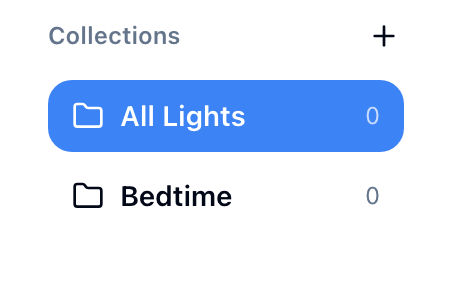
Use collections to create views like "All Lights," "Guest Controls," or "Bedtime."
See Collections for the full guide.
Automations
When viewing a home (not a specific room), an Automations section appears above your accessories. This shows all HomeKit automations for that home — time-based, sunrise/sunset, device-triggered, and more.
- Click an automation card to view its trigger, conditions, and actions
- Toggle the switch to enable or disable an automation
- Create new automations with the form dialog (time or event triggers, pick accessories and target values)
- Automations sync with the Apple Home app — changes in either place are reflected in both
Scenes
HomeKit scenes appear per-home in the sidebar. Click a scene to execute it — this triggers the scene on all included devices at once.
Service groups
Service groups (defined in the Apple Home app) let you control multiple accessories together. For example, "All Living Room Lights" — toggling it turns all the lights on or off simultaneously.
Customization
Backgrounds — Set a custom background image per home, room, or collection. Click the settings icon and choose "Background" to upload your own or pick from presets.
Visibility — Hide homes, rooms, or accessories you don't use. Right-click an item and select "Hide." Toggle "Show hidden items" in settings to reveal them again.
Layout — Drag to reorder rooms, accessories, and room groups in the sidebar.
Menu bar (Mac app)
When the Homecast Mac app is running, its menu bar icon gives you quick access to your devices without opening the full dashboard:
- Browse homes, rooms, and accessories
- Toggle devices directly from the menu bar
- See real-time state updates
Search
Start typing in the search bar to filter accessories by name across all your homes and rooms.
Next: Download the mobile app
Something not working? Common issues