
Virtual Accessories
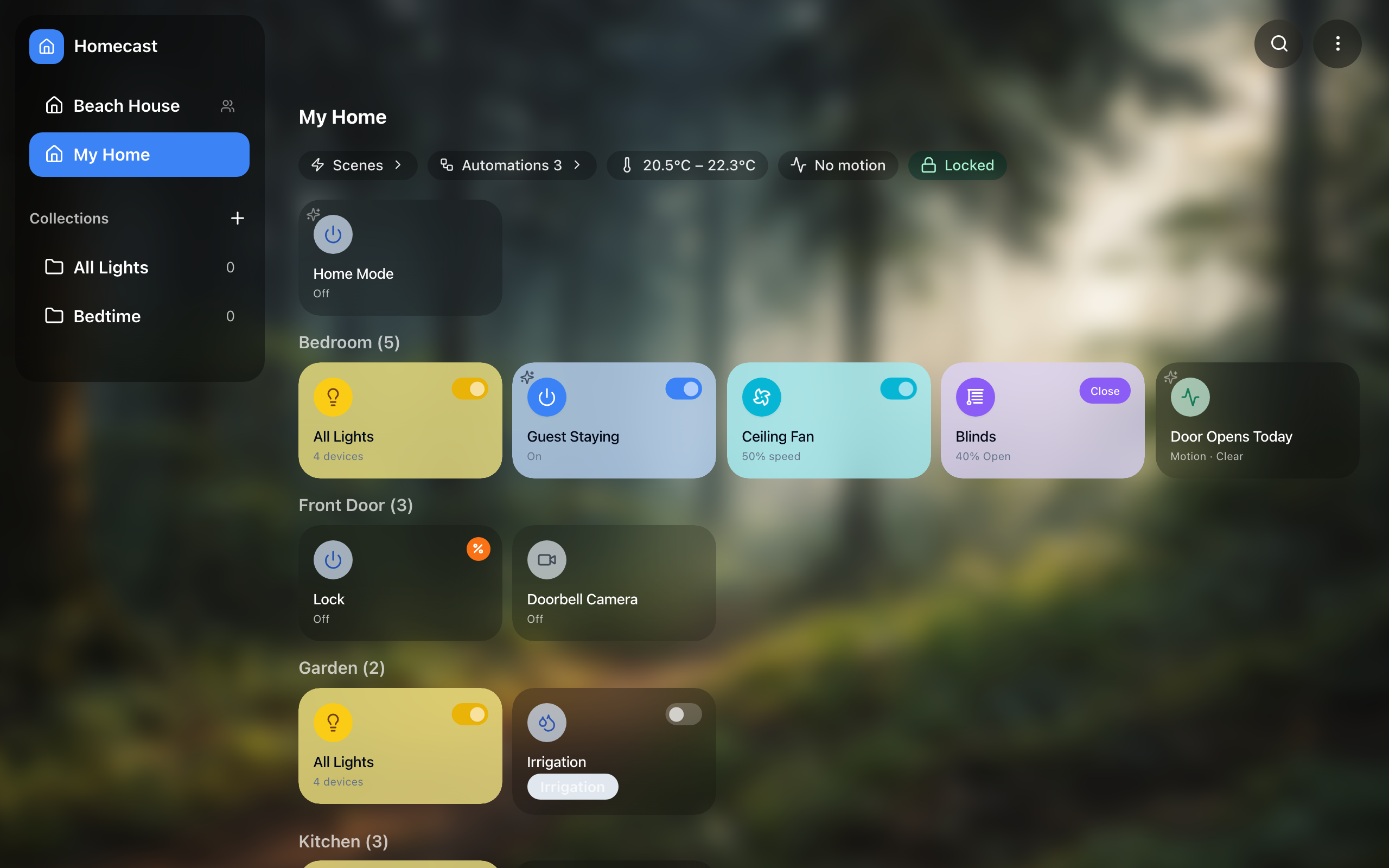
A virtual accessory is a device that doesn't exist. It has no hardware, no manufacturer and nothing to plug in — it is a value your automations own, sitting on your dashboard next to the real accessories.
They exist because Apple Home has nowhere to put state. It knows whether a light is on, but it has no idea whether you'd call the house Away, how many times the back door opened today, or whether the porch light already fired five minutes ago and should be left alone. Those are the things automations need to remember, and without somewhere to keep them the usual workaround is a plug-in that pretends to be a light switch so it can hold a true or false.
Virtual accessories are that, done properly.
What you can make
| Type | What it holds | Typical use |
|---|---|---|
| Switch | On or off | Guest Staying — automations check it before running the night routine |
| Mode | One of a list you define | Home Mode — Home / Away / Night / Vacation |
| Counter | A number that counts up and down | Door Opens Today — reset at midnight, notify past ten |
| Timer | A countdown | Porch Cooldown — start on motion, ignore further motion until it finishes |
| Number | A number in a range | Comfort Temperature — one place to change what every automation targets |
| Text | A short piece of text | Last Alert — what the most recent notification said |
| Date & time | A date, a time, or both | Holiday Ends — automations compare against it to resume the schedule |
Creating one
Right-click a home or a room in the sidebar and choose New Virtual Accessory, or use the home menu. Creating it from a room puts it in that room; creating it from a home puts it in the home-level area at the top of the home.
Then pick a type and give it a name. Each type asks only for what it needs — a Mode wants its list of options, a Timer wants a duration, a Counter wants a step and optional limits.
Where they live
Virtual accessories are not HomeKit devices, so they sit outside HomeKit's structure and you decide where they go:
- In a room — the virtual accessory appears in that room alongside the real accessories.
- In the home-level Virtual accessories area — shown above the rooms, for anything that belongs to the whole house. A Home Mode isn't in the kitchen.
You can move one between rooms at any time by editing it. Real accessories can't be moved this way — Apple Home owns which room a real device is in — but a virtual accessory is yours, so it goes where you want.
Adjustable or read-only
Every virtual accessory has an Adjustable here setting.
- Adjustable (the default) — you can change it by hand from the dashboard. Flip Home Mode to Away on your way out.
- Read-only — it shows its value but has no control. Automations can still change it freely.
Read-only is for values an automation maintains and you only want to see: a counter of how many times something happened, or a timestamp of when it last ran. Turning the control off means nobody knocks the value out of step by accident.
Using them in automations
Two ways, and most useful automations use both.
Setting one — the Set Virtual Accessory node changes a virtual accessory as an action. It offers only the operations that make sense for the type: a Mode can be set, a Counter can be added to, a Timer can be started or cancelled.
Reading one — use virtual('<id>') in any condition or template:
{{ virtual('home-mode') == 'Away' }}An IF node with that condition runs one branch when the house is Away and the other when it isn't. That is the whole point: one automation can behave differently depending on state you defined.
A worked example: don't re-trigger for five minutes
The classic problem. Motion turns the porch light on; motion keeps firing; the automation keeps running. A Timer solves it:
- Create a Timer called Porch Cooldown, duration 5 minutes.
- Device Changed → porch motion detected
- IF →
{{ virtual('porch-cooldown') != 'active' }} - On the true branch: Set Device → porch light on
- Set Virtual Accessory → Porch Cooldown → Start
While the timer is running the condition is false, so the automation stops at step 3 and does nothing. Once it finishes, the next motion works normally.
A worked example: Home Mode
- Create a Mode called Home Mode with options Home, Away, Night, Vacation.
- In any automation, add an IF with
{{ virtual('home-mode') == 'Night' }}. - Set it from the dashboard by hand, or with a Set Virtual Accessory node from a schedule or a location trigger.
Now one set of automations behaves four different ways, and you can see and change which one is in force from the dashboard.
Things worth knowing
- Values survive a relay restart. A counter keeps counting, a mode stays where you left it. Timers are the exception — a half-elapsed countdown can't be trusted across a restart, so it returns to idle.
- Editing a virtual accessory doesn't reset it. Changing a counter's step or a mode's options keeps the current value. Only changing a timer's duration resets it, because a running countdown that no longer matches its definition would be lying.
- Deleting one stops any automation that used it. The automation still exists, but
virtual()returns nothing and the Set Virtual Accessory node will fail. Check what references it first. - They need the relay. Virtual accessories live in the automation engine on your Mac. If the relay is offline the dashboard shows their last known values and disables the controls, rather than pretending a change went through.